Create an order
Push a new order into Otter and follow status through fulfillment.
Before you begin
- Application credentials (Quickstart)
- Store linked and
X-Store-Idready (Quickstart) - Webhook URL registered for order status events (Quickstart)
- Signature validation implemented (Keep webhooks secure)
Steps
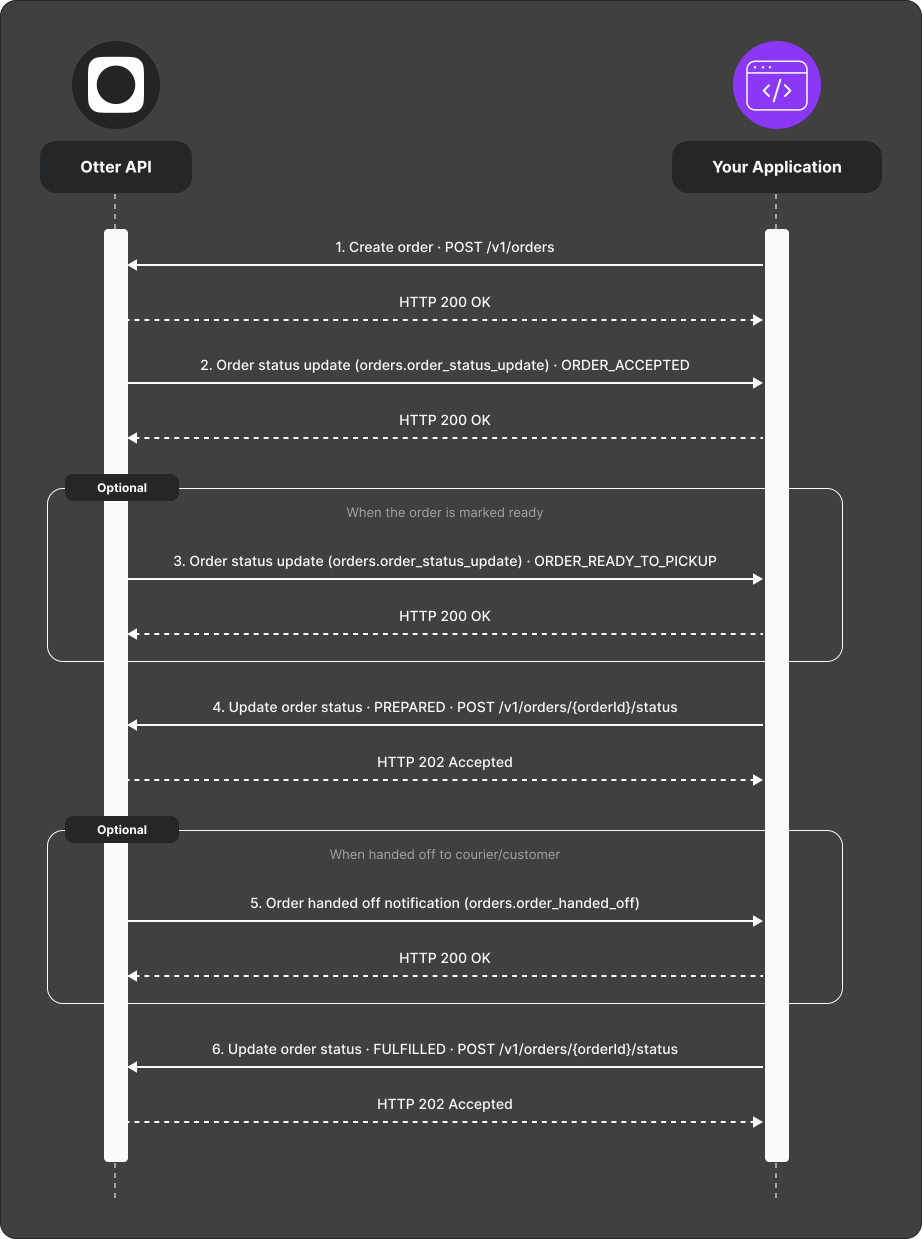
- Create the order with
POST /v1/orders(see API reference for the body). IncludeX-Store-Idand a stableexternalIdentifiers.id. - When the restaurant accepts (or integration-specific automation accepts), Otter sends an order status webhook with
ORDER_ACCEPTED. Otter API integrations have no universal acceptance or automatic-rejection deadline; confirm any configured window during onboarding. - (Optional) When the order is ready for pickup, Otter sends a status webhook with
ORDER_READY_TO_PICKUP. - Update the order to
PREPAREDwithPOST /v1/orders/{orderId}/statuswhen your side marks prep complete (if your flow requires it). - (Optional) When the order is handed off, Otter may send
ORDER_HANDED_OFF. - Update the order to
FULFILLEDwithPOST /v1/orders/{orderId}/statuswhen the order is complete on your side.
Verify
Create a test order and confirm:
POST /v1/ordersreturns success and an order id- Repeating the request with the same
externalIdentifiers.idreturns409 Conflictand does not create a duplicate order - You receive
ORDER_ACCEPTED(or equivalent) on your webhook with a validX-HMAC-SHA256 - Status updates to
PREPARED/FULFILLEDreturn202 Acceptedfor that order id. This confirms that the update was queued, not that downstream processing completed.
Common failures
| Symptom | Likely cause | Fix |
|---|---|---|
| Create fails with store errors | Missing/wrong X-Store-Id or store not linked | Re-check store onboarding |
Retry returns 409 Conflict | That external order id already exists | Treat the original create as the business action; reconcile using your stored external id |
| No status webhooks | Webhook not registered or URL unreachable | Fix registration; check URL |
| Signature check fails | Wrong secret or body bytes | Use raw body + endpoint secret |